
“IT共享之家”,进行关注
回复“资料”可获赠Python学习福利
【一、项目背景】
jQuery是当前很流行的一个JavaScript框架,使用类似于CSS的选择器,可以方便的操作HTML元素,拥有很好的可扩展性,拥有不少jQuery插件,也可对个方面进行插件开发。jQuery可以快速找到文档中的html元素,并对其进行操作,如隐藏、显示、改变样式......
【二、项目准备】
1. 下载 jQuery Mobile
如果你想将 jQuery Mobile 放于你的主机中,你可以从下面这个网站下载该文件。
jQuerymobile.com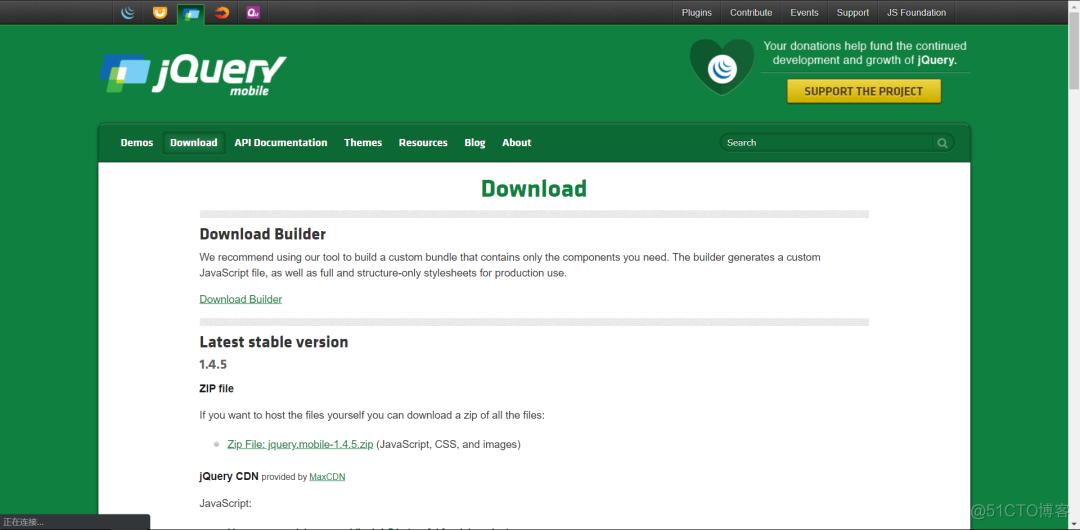
2. 在你的网页中添加 jQuery Mobile
你可以通过以下几种方式将jQuery Mobile添加到你的网页中:
从 CDN 中加载 jQuery Mobile (推荐)。
从jQuerymobile.com 下载 jQuery Mobile库。
3. 从 CDN 中加载 jQuery Mobile
<!-- meta使用viewport以确保页面可自由缩放 --><meta name="viewport" content="width=device-width, initial-scale=1">
<!-- 引入 jQuery Mobile 样式 -->
<link rel="stylesheet" href="http://code.jquery.com/mobile/1.4.5/jquery.mobile-1.4.5.min.css">
<!-- 引入 jQuery 库 -->
<script src="http://code.jquery.com/jquery-1.12.2.min.js"></script>
<!-- 引入 jQuery Mobile 库 -->
<script src="http://code.jquery.com/mobile/1.4.5/jquery.mobile-1.4.5.min.js"></script>
</head>
【三、项目实施】
1. body里面写入以下代码,(img标签的src属性导入自己喜欢的图片,设置图片的样式)。
<div data-role="page"><a href="#popup_1" data-rel="popup" data-position-to="window">
<img src="images/p1.jpg" style="width:49%">
</a>
<a href="#popup_2" data-rel="popup" data-position-to="window">
<img src="images/p2.jpg" style="width:49%">
</a>
<a href="#popup_3" data-rel="popup" data-position-to="window">
<img src="images/p3.jpg" style="width:49%">
</a>
<a href="#popup_4" data-rel="popup" data-position-to="window">
<img src="images/p4.jpg" style="width:49%">
</a>
<a href="#popup_5" data-rel="popup" data-position-to="window">
<img src="images/p5.jpg" style="width:49%">
</a>
<a href="#popup_6" data-rel="popup" data-position-to="window">
<img src="images/p6.jpg" style="width:49%">
</a>
属性
含义
data-role="page"
是在浏览器中显示的页面。
data-rel="popup"
设置当前元素具有弹出窗的功能
data-position-to="window"
设置弹出窗出现在窗口中间位置
2. 给图片添图标。
<div data-role="popup" id="popup_2"><a href="#" data-rel="back" data-role="button" data-icon="delete" data-iconpos="notext" class="ui-btn-right">Close</a>
<img src="images/p2.jpg" style="max-height:512px;" alt="pic2">
</div>
<div data-role="popup" id="popup_3">
<a href="#" data-rel="back" data-role="button" data-icon="delete" data-iconpos="notext" class="ui-btn-right">Close</a>
<img src="images/p3.jpg" style="max-height:512px;" alt="pic3">
</div>
<div data-role="popup" id="popup_4">
<a href="#" data-rel="back" data-role="button" data-icon="delete" data-iconpos="notext" class="ui-btn-right">Close</a>
<img src="images/p4.jpg" style="max-height:512px;" alt="pic4">
</div>
<div data-role="popup" id="popup_5">
<a href="#" data-rel="back" data-role="button" data-icon="delete" data-iconpos="notext" class="ui-btn-right">Close</a>
<img src="images/p5.jpg" style="max-height:512px;" alt="pic5">
</div>
属性
含义
data-iconpos="notext"
只显示图标
data-icon="delete"
删除按钮
data-role="button"
表示这是一个按钮
提示:jQuery Mobile 中的按钮会自动获得样式,这增强了他们在移动设备上的交互性和可用性。我们推荐您使用 data-role="button" 的 <a> 元素来创建页面之间的链接,而 <input> 或 <button> 元素用于表单提交。
【四、效果展示】
1. 下载一个叫Opera Mobile的软件。
Opera Mobile emulator是一款APP模拟器,专门用来测试APP项目。不过这个需要进行安装,这个模拟器可以根据手机屏幕大小进行模拟测试。
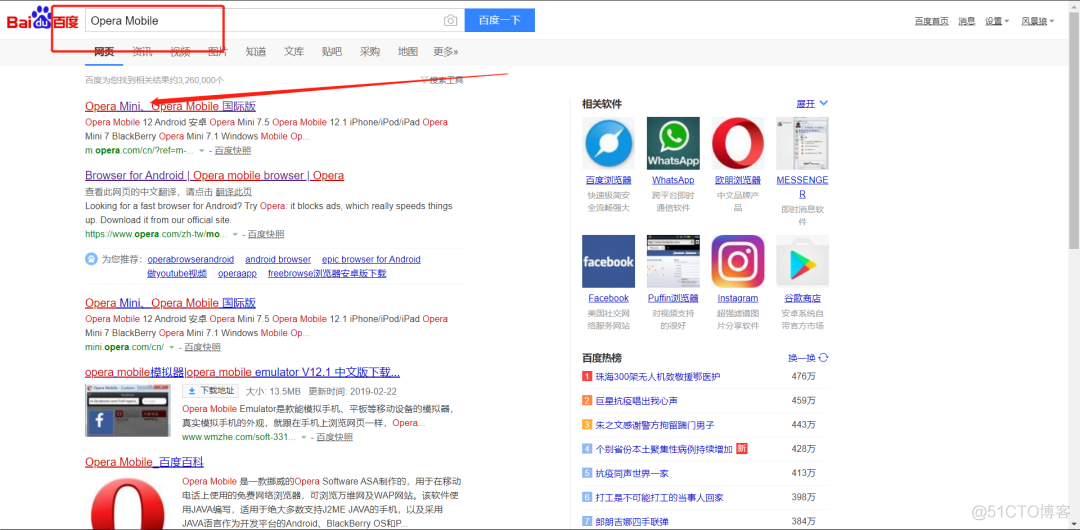
2. 百度搜索opera mobile,选择第一个网址。
3. 安装教程可以直接百度,这里不再赘述。
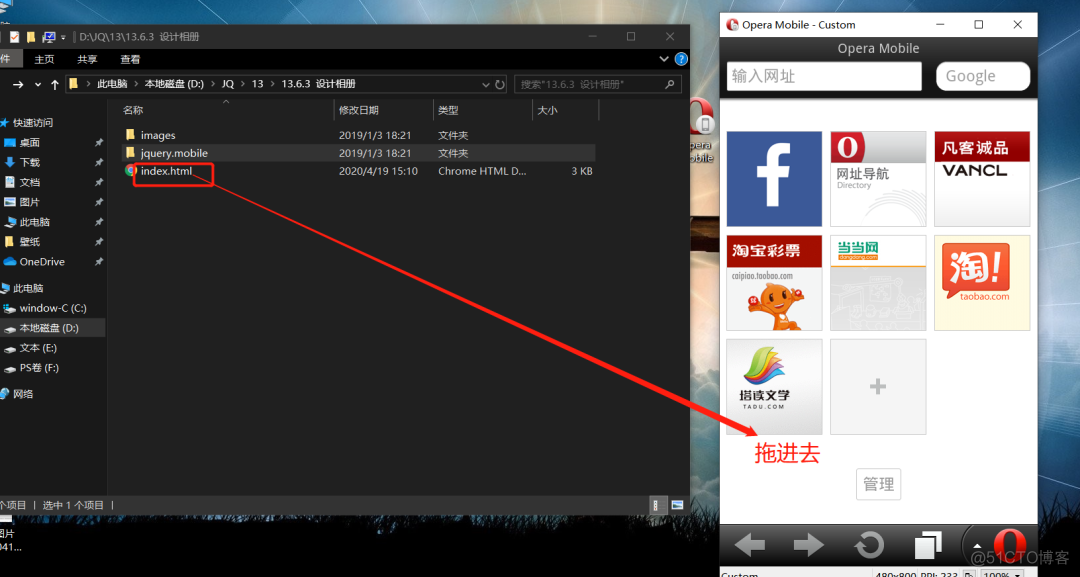
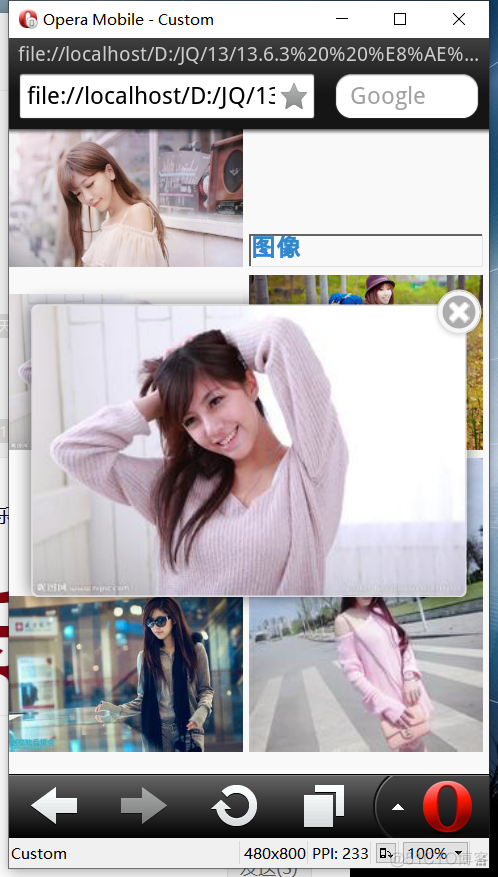
4. 安装完成后把我们的页面拖进去就可以了。(下面是界面效果图)
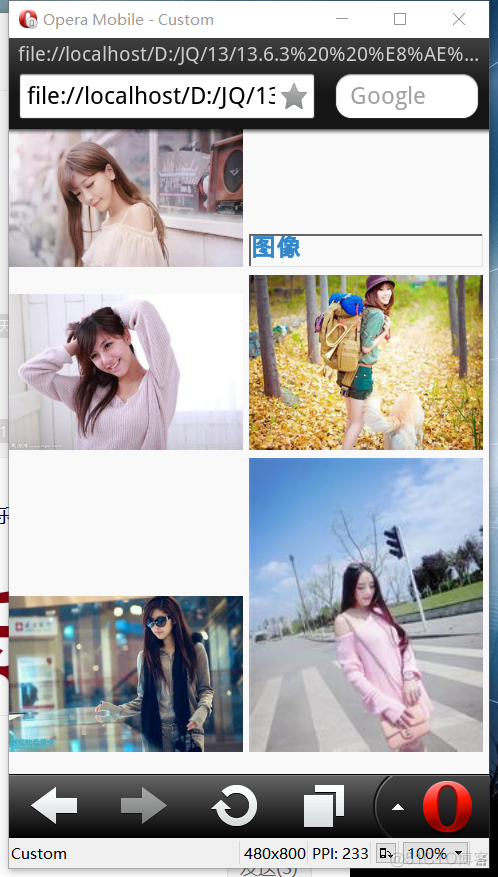
5. 效果图如下图所示。
6. 点击其中一张图片,会放大显示,效果图如下图所示。
【五、总结】
1. 本文章就jQuery Mobile在应用中出现的难点和重点,做出了相对于的解决方案。
2. 使更多的人去了解jQuery Mobile。
3. 欢迎大家积极尝试,有时候看到别人实现起来很简单,但是到自己动手实现的时候,总会有各种各样的问题,切勿眼高手低,勤动手,才可以理解的更加深刻。
4. 如果需要本文源码,请在公众号后台回复“设计相册”四个字获取。
看完本文有收获?请转发分享给更多的人
IT共享之家
入群请在微信后台回复【入群】

------------------- End -------------------